

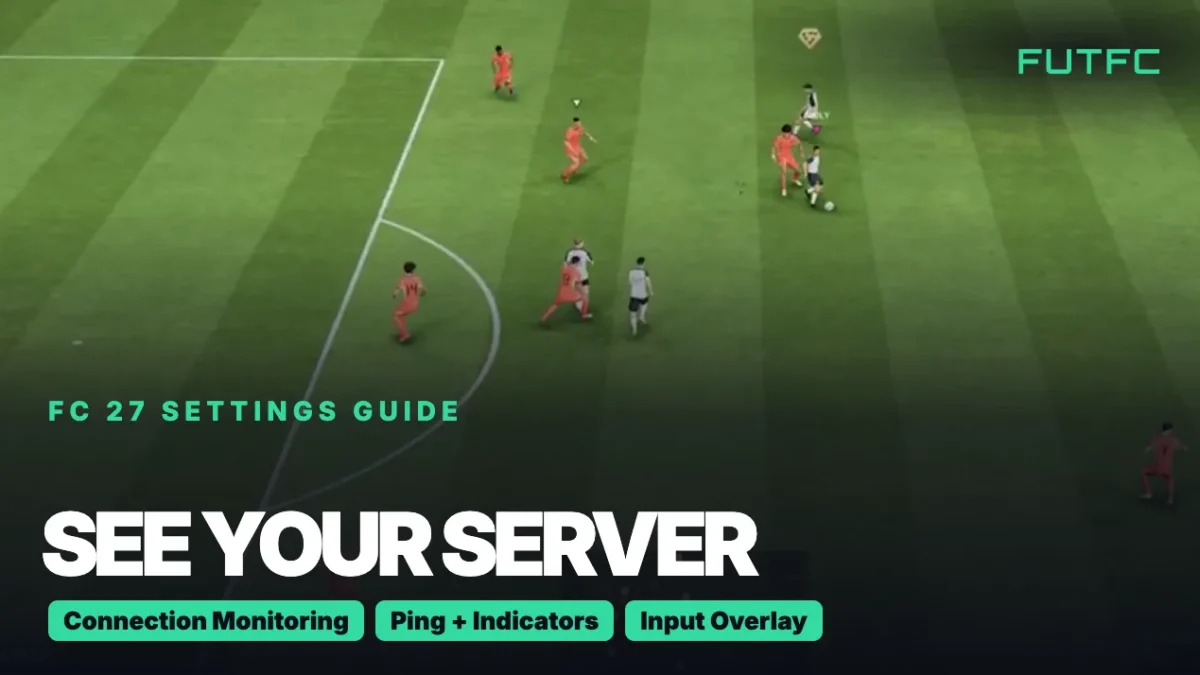
FC 27 does not show the name or city of the server you play on, but you can see your live ping to it in every online match. Turn it on under Settings, Game Settings, Visual, Connection Monitoring and pick Ping and Connection Indicators.
| What you want to see | Where to find it | Pick this |
|---|---|---|
| Your ping to the server, live | Settings, Game Settings, Visual, Connection Monitoring | Ping and Connection Indicators |
| Warnings for packet loss and jitter | Same menu | Ping and Connection Indicators (or Connection Indicators Only) |
| How much delay the network adds to your inputs | Settings, Game Settings, Visual, Input Overlay | Local Input + Online Response |
| Your connection over the last 7 days | EA’s Connection Quality Report on EA Help | Log in with your EA account |
From the main menu you start in Customise, then Settings. Connection Monitoring sits near the bottom of the Visual tab. The menus are the same on PS5, Xbox and PC.
Video: “How To Show Ping In FC 27” by iHazCarrot on YouTube.
How to show your ping in FC 27
- Go to Customise from the main menu and open Settings.
- Open Game Settings and move to the Visual tab.
- Scroll to Connection Monitoring, near the bottom of the list.
- Pick Ping and Connection Indicators. You now get your ping in milliseconds on screen during online matches, plus warning icons when something goes wrong.
- Play an online match such as Rivals or an online friendly. The ping number updates every second.
Connection Monitoring is turned on by default. The other choices are Ping Only, Connection Indicators Only and Off.
What the connection icons mean
| Icon | What it means | What you feel in the match |
|---|---|---|
| High ping | Your data takes long to reach the server and back | Passes and shots come out late |
| Packet loss | Some of your data never arrives | Delayed actions, sudden speed ups, disconnects |
| Jitter | Your ping jumps a lot in a short time | Stutter and players that seem to teleport |
An orange icon means your match may feel a bit worse. A red icon means a bigger problem. If an icon stays on screen for the whole match, your connection is unstable, and the fixes in our FC 27 connection guide are the next step.

Can you see or choose your server in FC 27?
- No server name: the game shows your ping, not which data centre or city hosts the match.
- No server picker: there is no menu to lock one server or region. In The Grounds, EA says outright that you cannot pick a server, lock your region or set a maximum ping.
- Friends change the picture: playing with friends in another region can put your group on a server that is further away from you.
- Is it EA, or is it you? If nobody can connect, check our FC 27 server status page before you touch your router.
Paid “game booster” apps claim to show or lock your server. We do not recommend them. Your in-game ping is the number that matters, because it measures the match you are actually playing.
Input delay: is it your connection or your setup?
Many players ask the same thing: the game feels heavy even with a good ping. FC 27 has a tool for exactly that. Turn on Input Overlay under Settings, Game Settings, Visual and choose Local Input + Online Response.
- Local Input shows the buttons you press on your controller.
- Online Response shows the same buttons after they went through the EA server and your network.
- A gap between the two means the delay comes from your connection (ping, packet loss or jitter).
- No gap, but it still feels slow: the delay is on your side of the screen. Turn on Game Mode on your TV and, on PC, follow our FC 27 PC settings.
Online Response only works in matches hosted on EA’s game data centres. Offline, the overlay falls back to Input Only.
How to fix lag once you can see it
- Use a cable instead of Wi-Fi. It is the biggest single fix for jitter and packet loss.
- Stop downloads and streaming on your network while you play.
- Restart your router and console or PC. Unplug them for 30 seconds.
- Turn off your VPN. It adds distance to the EA server.
- Check your score afterwards in EA’s Connection Quality Report to see if it improved.
Common mistakes
- Only looking at ping. A steady ping that is a bit high often feels better than a low ping that keeps jumping. Watch the jitter icon too.
- Blaming the server for offline stutter. If Kick-Off against the AI also stutters, it is your PC or display, not the network.
- Blaming your connection for Live Event kicks. Those disconnects come from a custom tactics bug. See our Live Event disconnects explainer.
- Checking ping in the menus. The number only shows during online matches.
| Guide | What you get |
|---|---|
| Best FC 27 controller settings | Receiver lock, sprint, switching and passing assists |
| Best FC 27 camera settings | The camera, height and zoom that let you see the whole pitch |
| FC 27 PC settings | Graphics settings for higher FPS and less stutter |
| FC 27 connection guide | Connection Score, jitter and every lag fix from EA |
| FC 27 server status | Is EA down right now? |
Still to come this week: how to turn off crossplay, then the full FC 27 Settings Guide on Sunday.
How to see your server in FC 27: FAQ
How do I see my server in FC 27?
FC 27 does not name the server. Go to Settings, Game Settings, Visual, Connection Monitoring and pick Ping and Connection Indicators. Your ping to the server then shows on screen in every online match and updates every second.
How do I fix speed up lag in FC 27?
Speed up lag usually comes from jitter or packet loss. Use a cable instead of Wi-Fi, stop downloads on your network and restart your router. If you must use Wi-Fi, choose 5 GHz over 2.4 GHz.
Is it network lag or input delay in FC 27?
Turn on Input Overlay with Local Input + Online Response. If the Online Response controller lags behind your Local Input, it is your network. If both move at the same time and the game still feels slow, check your TV’s Game Mode or your PC settings.
Sources: EA Help: Connection monitoring options and EA Help: Input Overlay, plus independent FC 27 connection guides.
Comments